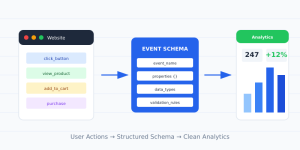
If you’ve ever wondered why your analytics data doesn’t match reality, chances are you’re missing a data layer. I’ve seen this problem dozens of times across client projects. Without a proper data layer, your tags fire inconsistently, your data gets messy, and your reports become unreliable.
A data layer solves this by creating a single, structured source of truth between your website and your analytics tools. In this guide, I’ll walk you through what a data layer is, how it works, and exactly how to implement one — with real code you can use today.

What Is a Data Layer?
A data layer is a JavaScript object that sits on your web page and holds structured information about the page, the user, and their actions. Think of it as a middle layer — a translator between your website’s code and the marketing or analytics tags that consume that data.
In technical terms, it’s a JavaScript array called dataLayer. Google Tag Manager popularized this concept, but the idea applies to any tag management system. The data layer collects information in a predictable format so your tags don’t have to scrape the DOM or rely on fragile CSS selectors.
- → Data layer: A structured JavaScript object that stores page, user, and event data for analytics tools to consume
- → dataLayer: The specific JavaScript array used by Google Tag Manager as its default data layer name
- → dataLayer.push(): The method used to add new data or events into the data layer at runtime
Here’s the simplest possible data layer declaration:
<script>
  window.dataLayer = window.dataLayer || [];
  dataLayer.push({
    'pageType': 'article',
    'pageCategory': 'analytics',
    'author': 'Marcus Jery'
  });
</script>
This code must appear before the GTM container snippet. That’s a critical detail many developers miss. If GTM loads first, it won’t see the initial data layer values.
How the Data Layer Works
The data layer operates on a simple push-based model. Your website pushes data into the array, and your tag management system listens for changes. Every time a dataLayer.push() fires, GTM processes the new data and evaluates which tags should run.
Here’s the flow in practice:
- 1 The page loads and the initial
dataLayerarray is declared with static page-level data - 2 The GTM container loads and reads the existing data layer values
- 3 The user interacts with the page — clicks a button, submits a form, views a product
- 4 Your site’s JavaScript calls
dataLayer.push()with event data describing the interaction - 5 GTM receives the push, evaluates trigger conditions, and fires the matching tags
The beauty of this model is separation of concerns. Your developers define what data to expose. Your marketing team (via GTM) decides what to do with it. Neither needs to touch the other’s work.
When a user adds an item to a cart, for example, the data layer push might look like this:
dataLayer.push({
  'event': 'add_to_cart',
  'ecommerce': {
    'currency': 'USD',
    'value': 49.99,
    'items': [{
      'item_id': 'SKU-12345',
      'item_name': 'Analytics Masterclass',
      'item_category': 'Courses',
      'price': 49.99,
      'quantity': 1
    }]
  }
});
This follows the GA4 e-commerce event schema — a standard I recommend sticking to even if you use platforms beyond Google Analytics.

Why You Need a Data Layer
I’ve worked on projects where teams tried to skip the data layer entirely. They used auto-event tracking, DOM scraping, and CSS selector-based triggers. It works until the site redesign breaks every single tag overnight.
A data layer protects you from that. Here’s what you gain:
- ✓ Consistency: Every analytics tool reads from the same data source, so numbers align across platforms
- ✓ Resilience: Tags don’t break when designers change button classes or page layouts
- ✓ Speed: Tags fire faster because they don’t need to query the DOM for information
- ✓ Governance: You control exactly what data gets shared with third-party scripts
- ✓ Scalability: Adding a new analytics vendor takes minutes instead of days of custom coding
- ✓ Privacy compliance: Easier to respect consent because you control data flow from one place
The data layer is especially critical if you run paid advertising. Without one, your conversion pixels rely on fragile page-matching rules. With a data layer, you push a purchase event with transaction details, and every ad platform gets the exact same accurate data.
Data Layer Structure and Syntax
The dataLayer is a standard JavaScript array. Each entry is a plain JavaScript object containing key-value pairs. Keys are strings. Values can be strings, numbers, booleans, arrays, or nested objects.
Here’s a comprehensive initial data layer for an e-commerce site:
<script>
  window.dataLayer = window.dataLayer || [];
  dataLayer.push({
    'pageType': 'product',
    'pageCategory': 'Electronics',
    'pageName': 'Wireless Headphones - Model X',
    'userStatus': 'logged_in',
    'userType': 'returning',
    'userId': 'USR-78432',
    'ecommerce': {
      'items': [{
        'item_id': 'WH-MODEL-X',
        'item_name': 'Wireless Headphones Model X',
        'item_brand': 'AudioPro',
        'item_category': 'Electronics',
        'item_category2': 'Audio',
        'price': 129.00,
        'currency': 'USD'
      }]
    }
  });
</script>
<!-- Google Tag Manager snippet goes here -->
A few important rules govern how data layers behave in GTM:
- → Merging: Each
dataLayer.push()merges new data with the existing internal data model — it doesn’t replace it - → Events: Including an
'event'key triggers GTM to evaluate that push against your triggers - → Persistence: Data layer values persist until the page reloads or you explicitly overwrite them
- → Naming: Use camelCase for custom keys and follow Google’s data layer developer guide conventions
For naming conventions, I recommend prefixing custom dimensions clearly. Use user_ for user attributes, page_ for page attributes, and product_ for product data. This keeps your data layer readable as it scales.
Implementation: Step by Step
Let me walk through a real implementation from a recent client project. We needed page-level data, user authentication status, and e-commerce event tracking. Here’s how I structured it.
Step 1: Define Your Data Requirements
Before writing any code, document what data you need. I use a simple spreadsheet with columns for the key name, data type, example value, and which tags consume it. This becomes your tracking plan — the foundation of clean analytics.
Step 2: Declare the Initial Data Layer
Place this script in your page’s <head> section, before the GTM container snippet. Your back-end should dynamically populate the values based on the current page context.
<script>
  window.dataLayer = window.dataLayer || [];
  dataLayer.push({
    'event': 'page_data_ready',
    'page_type': '{{pageType}}',
    'page_category': '{{pageCategory}}',
    'user_logged_in': {{isLoggedIn}},
    'user_id': '{{userId}}'
  });
</script>

<!-- Google Tag Manager -->
<script>(function(w,d,s,l,i){w[l]=w[l]||[];w[l].push({'gtm.start':
new Date().getTime(),event:'gtm.js'});var f=d.getElementsByTagName(s)[0],
j=d.createElement(s),dl=l!='dataLayer'?'&l='+l:'';j.async=true;j.src=
'https://www.googletagmanager.com/gtm.js?id='+i+dl;f.parentNode.insertBefore(j,f);
})(window,document,'script','dataLayer','GTM-XXXXXX');</script>
<!-- End Google Tag Manager -->
Replace the {{placeholders}} with your server-side template variables. In PHP, you’d use <?php echo $pageType; ?>. In React, you’d populate these from your app state or route data.
Step 3: Add Event-Based Pushes
For user interactions, push events from your JavaScript. Every push should include an event key so GTM can trigger on it.
// Form submission tracking
document.getElementById('signup-form')
  .addEventListener('submit', function() {
    dataLayer.push({
      'event': 'form_submit',
      'form_id': 'signup-form',
      'form_name': 'Newsletter Signup',
      'form_location': 'sidebar'
    });
  });

// CTA click tracking
document.querySelectorAll('[data-track-cta]')
  .forEach(function(el) {
    el.addEventListener('click', function() {
      dataLayer.push({
        'event': 'cta_click',
        'cta_text': this.textContent.trim(),
        'cta_location': this.dataset.trackCta
      });
    });
  });
Step 4: Configure GTM Variables and Triggers
In Google Tag Manager, create Data Layer Variables for each key you want to use in tags. Set the variable name to match your data layer key exactly — for instance, a Data Layer Variable named page_type will pull the value from your data layer’s page_type key.
Then create Custom Event triggers matching your event names. A trigger for the event form_submit will fire whenever you push that event to the data layer.
Step 5: Clear E-Commerce Objects
One thing the GA4 documentation emphasizes: always clear the ecommerce object before pushing a new e-commerce event. Otherwise, stale data from the previous push can leak into the next one.
// Always clear before pushing new ecommerce data
dataLayer.push({ ecommerce: null });
dataLayer.push({
  'event': 'purchase',
  'ecommerce': {
    'transaction_id': 'TXN-98765',
    'value': 259.98,
    'currency': 'USD',
    'items': [
      {
        'item_id': 'WH-MODEL-X',
        'item_name': 'Wireless Headphones Model X',
        'price': 129.00,
        'quantity': 2
      }
    ]
  }
});

Common Mistakes to Avoid
Over the years, I’ve debugged hundreds of data layer implementations. These are the mistakes I see most often.
- → Loading order errors: Placing the GTM snippet before the initial
dataLayerdeclaration. GTM won’t see values that were pushed before it loaded unless the array already exists. - → Forgetting the event key: Pushing data without an
'event'property. The data gets stored, but no triggers fire. If you need a tag to respond, you must include an event. - → Inconsistent key names: Using
productNameon one page andproduct_nameon another. Pick a naming convention — I prefer snake_case — and enforce it across your entire site. - → Not clearing ecommerce: Failing to push
{ ecommerce: null }before a new e-commerce event. This causes data from previous events to pollute subsequent ones. - → Hardcoding values: Putting static values in the data layer instead of dynamic ones from your back end. A data layer that says
'pageType': 'homepage'on every page is useless. - → Overwriting the array: Using
dataLayer = []instead ofwindow.dataLayer = window.dataLayer || []. The first version destroys any data that was already pushed.
Testing and Debugging Your Data Layer
A data layer you can’t verify is a data layer you can’t trust. I test every implementation using three methods before signing off.
Browser Console
Open your browser’s developer tools and type dataLayer in the console. You’ll see the full array of objects that have been pushed. Expand each entry to inspect the key-value pairs. This is your first sanity check.
GTM Preview Mode
Google Tag Manager’s Preview and Debug mode (also called Tag Assistant) is the most thorough way to test. It shows you every data layer push, which triggers evaluated, which tags fired, and the state of all your GTM variables at each step.
To use it, click “Preview” in the GTM workspace. A new tab opens with your site, and the Tag Assistant panel shows the data layer timeline in real time.
Automated Validation
For production sites, I recommend adding automated data layer validation. You can use tools like DataLayer Checker or write custom unit tests that verify your data layer pushes match your tracking plan schema.
A simple validation function looks like this:
function validateDataLayerPush(push, schema) {
  for (const key of schema.required) {
    if (!(key in push)) {
      console.error(`Missing required key: ${key}`);
      return false;
    }
  }
  for (const [key, type] of Object.entries(schema.types)) {
    if (key in push && typeof push[key] !== type) {
      console.error(`Invalid type for ${key}: expected ${type}`);
      return false;
    }
  }
  return true;
}
Run this in your development environment to catch data layer issues before they reach production. Broken data layers are much harder to fix retroactively — you lose the data permanently for the period it was broken.

FAQ
What is the difference between a data layer and dataLayer?
A “data layer” is the general concept — a structured data object sitting between your website and analytics tools. The dataLayer (camelCase) is the specific JavaScript array that Google Tag Manager uses by default. Other tag management systems like Tealium use their own data layer objects with different names, but the concept remains the same.
Can I use a data layer without Google Tag Manager?
Yes. A data layer is a design pattern, not a GTM feature. You can create a JavaScript object holding your page and event data, then have any analytics script read from it. Adobe Launch, Tealium iQ, and Segment all support their own data layer implementations. The principle of separating data from tag logic applies universally.
Where should I place the data layer code on the page?
Place the initial dataLayer declaration in the <head> section, before your tag management snippet. This ensures the tag manager can read your data as soon as it loads. Event-based pushes using dataLayer.push() can appear anywhere in the page or in external JavaScript files that load later.
How do I pass dynamic values into the data layer?
Use your server-side language to inject values into the data layer script. In PHP, use echo within the JavaScript block. In Node.js, template the values into your HTML response. For single-page applications, push to the data layer from your frontend framework’s lifecycle hooks or router events whenever the page state changes.
Does a data layer slow down my website?
No. The data layer itself is a tiny JavaScript array — it adds negligible load time. The performance impact comes from the tags you fire based on data layer events. Keep your tag count reasonable, defer non-essential tags, and use trigger conditions wisely to minimize any performance concerns from your tag management setup.